Steps for Accessing Evidence Through the Claimants ReEmployCT Portal
To access evidence through the ReEmployCT Claimants Portal, use the following procedure:
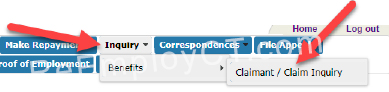
- When you log into ReEmployCT, menu options will appear as shown below. From these menu options:
- (a) Click on the Inquiry option. A drop-down menu will appear under the ‘Inquiry’ option you clicked.

- (b) Select the Benefits option from the drop-down. Another drop-down menu will appear under the ‘Benefits’ option you selected.
- (c) Select the Claimant/Claim Inquiry option from the drop-down.
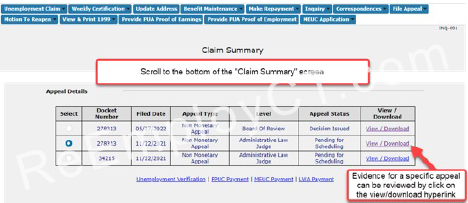
- The Claim Summary screen will then appear. On this screen:

- (a) Scroll down to the Appeal Details section of the page.
- (b) In the Select column, select the docket for which you wish to review evidence.
- (c) In the View/Download column, click on the View/Download link for the docket you selected.
- The Appeals Documentation screen will then appear. On this screen:

- (a) Click on the View Adjudicator Fact-Finding link to view your adjudicator’s fact-finding report.
- (b) Scroll down to the Exhibit/Document Name section of the page.
- (c) In the Exhibit/Document Name column, you will see a list of hyperlinked documents. Click on the document for which you wish to view evidence. Evidence for the document you selected will then appear.